
In this guide, you will learn about the Customer Data Platform (CDP) Widget feature, which allows you to view complete customer information and their entire interaction history in a single view. This information includes customer profiles, conversations, deals, tickets, campaigns, companies, and tasks connected to the customer.
This feature can be accessed through two areas: the right panel in Inbox and the record details page in CRM. This allows you to view and manage customer information without navigating to the CDP details page. In addition, each conversation history includes a summary from AIrene to help you understand the context of previous interactions.
Important
Currently, the CDP Widget feature will first be implemented on the Mekari Qontak Inbox page. Through this feature, you can view customer profile information and all connected data directly from the Inbox page without navigating to the CDP page.
A. How to Access the CDP Widget
- Log in to your Qontak account, then select the Inbox menu.
- Then, under All chats, select one of the chat rooms.
- Then, on the right side of the page, you will see a panel containing Customer profile and Conversation details information. On the far right side of the panel, there are several feature icons, including the CDP Widget, which is indicated in the image below.
B. Overview of the CDP Widget Display
Below is an overview of the CDP Widget display on the Inbox page:
a. Customer details
b. Conversations
- Each Conversation summary card displays a summary generated by AIrene. This allows you to understand the context of previous conversations without having to open the conversation room.
- If the conversation has a Resolved status but the summary is not yet available, you can still submit a request using the “Request Summary” button. Please note that historical data displayed through the CDP Widget can only be viewed and cannot be edited.
c. Campaigns
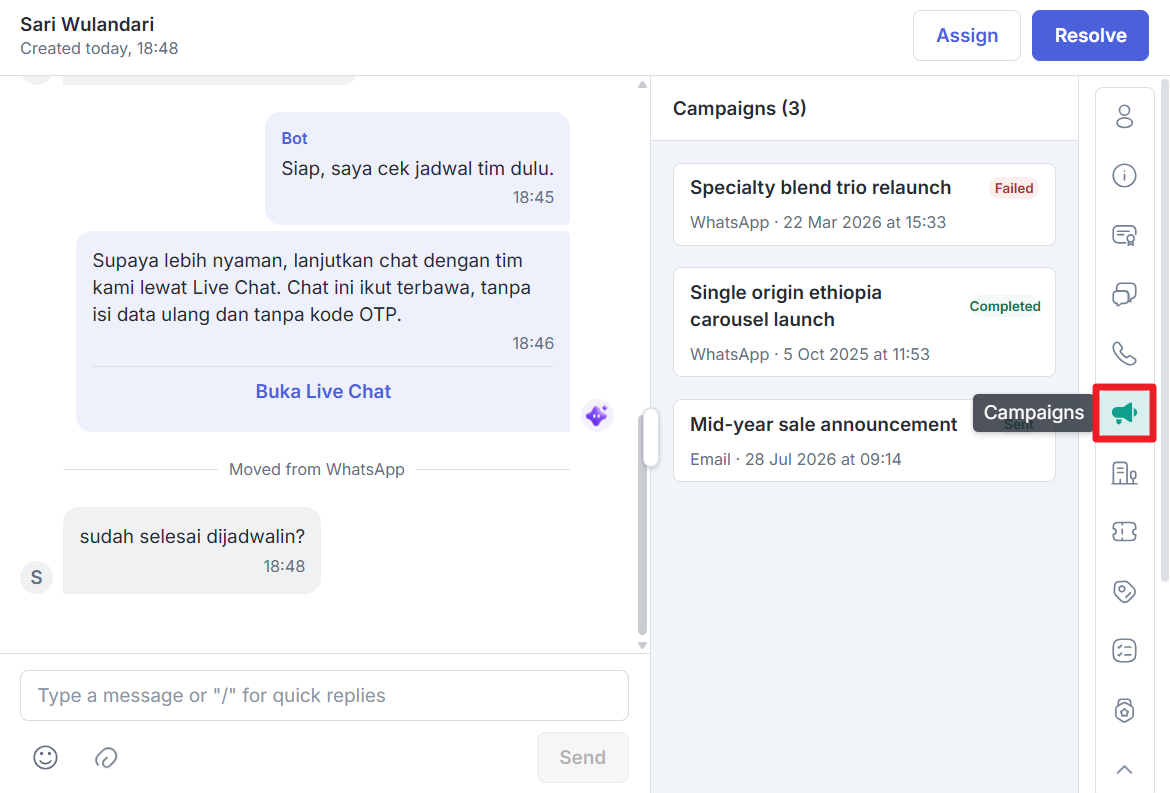
You can view the campaign message template and click one of the cards to view the template. Please note that historical data displayed through the CDP Widget can only be viewed and cannot be edited.
d. Companies
e. Tickets
You can search for tickets and click one of the cards to open the ticket history in Qontak CRM. Please note that historical data displayed through the CDP Widget can only be viewed and cannot be edited.
f. Deals
You can search for tickets and click one of the cards to open the deal history in Qontak CRM. Please note that historical data displayed through the CDP Widget can only be viewed and cannot be edited.
g. Tasks
h. Loyalty
You must subscribe to the add-on package first. After the add-on package has been successfully added, you can continue using the feature according to your needs.